Thursday, August 29, 2013

Safari Binary Cookies - Now with more parsing power!

Safari stores cookies in a file called Cookies.binarycookies under the location ~/Library/Cookies/Cookies.binarycookies. In earlier versions of Safari, cookies were stored in a plist file which could be easily read in a plist editor. However, the newer binarycookies file format - not so much.

Several people have already done a fantastic job of breaking down the file format and writing scripts to parse these cookies. If Perl is your flavor, check out these handy tools from Jake Cunningham. If you love Python, the script from Satishb3 does a great job of parsing the information.


While both of the above scripts do a fantastic job of parsing and presenting the information for the Cookies.binarycookies file, I wanted a way to parse a directory full of these binarycookies as well as the Google Analytic values from the cookies.

The awesome thing about open source is the ability to not only learn by looking at someone else's code, but to build on top of what they have done and create or tailor something for what you need (then hopefully turn around and share it again with others).


When I was reviewing the Satishb3 python script, I did not see a specific licensing agreement distributed with the code. I reached out to Satishb3 for permission to reuse his code and luckily for me, he graciously wrote back granting me permission.

This saved me a lot of time, and enabled me to focus my efforts on adding in the features that I needed. I sat down with some Dr. Pepper and the handy, dandy SIFT Workstation,and wrote a python script that parses the binarycookies file with the following additions:


1) Parses a directory full of cookies
2) Parses the Google Analytic values from the Cookies (umta, utmb, utmz)
3) Added an option to output into TLN format


 Usage Examples


To process one file:
 bc_parser.py  -f Cookies.binarycookies -o myoutput.tsv

To process a directory of cookies:
bc_parser -d /full/path/to/cookies -o myoutput.tsv
To have the output in TLN format (this can be used with the file or directory option):

bc_parser.py -f Cookies.binarycookies -o myoutput.tsv - t -H MariPC -u Mari
 -f is the binary cookie filename, -o is the output file,  -t means TLN output, -H is the Host (optional) and -u is the username (optional) .

Example Cookie Output: 

Full Image

Google Analytic Output, utmz:


Full Image

TLN (Timeline Output):

Full Image


Download the bc_parser python script.


Monday, August 5, 2013

MS Office Recent Docs Plist Parser

Recently a post came up at Forensic Focus regarding the timestamps in the com.microsoft.office.plist file. I had a case several months ago where I ran into the same situation - trying to determine the timestamp for the Access Date stored in this file.  I have been meaning to get around to writing about what I found,  so after I saw that post I thought I would get in gear and do it.

When opening documents in Office 2008 and 2010 ( not sure about other versions) on a Mac the user is presented with a dialog box for recent documents, called the Workbook Gallery.  As you can see by the screen shot below, the Recent Documents tracks  the File Name, Last Opened date and File Path of the recent documents:


This information is stored in the com.microsoft.office.plist file under the User's profile : /Users/%Username%/Library/Preferences/.

Some notes about the com.microsoft.office.plist files:
  • It can contain A LOT of entries. I found close to 1500 entries spanning 4 years. 
  • It can also have User Information such as name and email address
  • It has Volume names, so you can see if files were opened from an external drive, etc.
If you do not have a Mac, you can view this file with plist Editor for Windows from icopybot.com. Below is a screen shot of how the com.microsoft.office.plist file looks. There is an Access Date field and File Alias field which both appear to be Base64 encoded:


Sometimes using various tools to see how the information is presented is helpful. Since the plist file is from a Mac, my next choice was to look at the file natively on a Mac. There is a free Plist Editor included in XCode, which is a developer tool published by Apple.

Looking at this plist file through the Xcode Plist Editor shows the following:


Now the Access Date look familiar, Hex values - and the File Alias looks like it's in Hex too.

Time to view the data in a Hex viewer to see what’s going on:


Ah ha! File Paths, File names, and the timestamp information.

Now the trick – figuring out the timestamp. By doing some testing – I.E. opening up files in MS Office on a Mac, checking the changes in the timestamp values, and brainstorming with Brian Moran, we were able to figure out the timestamp appeared to be in HFS+ 32 Bit Little Endian:

B95120CE = Thu, 01 August 2013 10:56:09 -0700

We couldn’t quite figure out what the last two bytes, 0xEB6A, were for – maybe milliseconds? Further testing will need to be done to confirm this.

Time to time it all together. Take the Data Field from File Alias in the Mac Plist Editor and convert the Hex value to ASCII (try this website) to get your File Paths and File Name:

Hex:
00000000 01960002 00000a4d 44544855 4d424452 56000000 00000000 00000000 00000000 00000000 00004244 0001ffff ffff1645 6d706c6f 79656520 53616c61 72696573 2e786c73 78000000 00000000 00000000 00000000 00000000 00000000 00000000 00000000 00000000 00000000 0000ffff ffff0000 00000000 00000000 0000ffff ffff0000 0a024953 00000000 00000000 00000000 0018436f 6d70616e 7920546f 70205365 63726574 2046696c 65730002 00442f3a 566f6c75 6d65733a 4d445448 554d4244 52563a43 6f6d7061 6e792054 6f702053 65637265 74204669 6c65733a 456d706c 6f796565 2053616c 61726965 732e786c 7378000e 002e0016 0045006d 0070006c 006f0079 00650065 00200053 0061006c 00610072 00690065 0073002e 0078006c 00730078 000f0016 000a004d 00440054 00480055 004d0042 00440052 00560012 00302f43 6f6d7061 6e792054 6f702053 65637265 74204669 6c65732f 456d706c 6f796565 2053616c 61726965 732e786c 73780013 00132f56 6f6c756d 65732f4d 44544855 4d424452 5600ffff 0000

ASCII:
MDTHUMBDRV
Employee Salaries.xlsx
Company Top Secret Files
D/:Volumes:MDTHUMBDRV:Company Top Secret Files:Employee Salaries.xlsx
Employee Salaries.xlsx
MDTHUMBDRV
0/Company Top Secret Files/Employee Salaries.xlsx
/Volumes/MDTHUMBDRV
Mari DeGrazia


(In this example, the volume name of my thumbdrive was MDTHUMVDRV)

Then use Dcode (or whatever you like) to convert the Hex timestamp (remember to remove the last two Bytes):


If you do not have a Mac at your disposal, no worries, you can still use the Windows plist editor.

From the plist Editor for Windows, convert the Access Date from Base64 to Hex (try this website):
AAC5USDO62o=  =  0000B95120CEEB6A

Then use DCode to convert B95120CE as shown above.

For the File Alias, convert the Data field from Base64 to ASCII, try this website for the conversion.

Or go for door number two - you can use the python scrip I wrote, OfficePlistParser to parse the file.

The script will pull the MRU ID (so you can refer back to the plist for verification), Access Date in UTC, and Full Path. Long file names appear to be concatenated with with a random set of numbers, like so:

\long\path\to\my\long\file\name\Supercalifragilistic#6E432C.doc

In Office 2010, the long file names are supplied in the file aliases which are parsed by the script.

It also pulls User information which is output to the screen. A note on the User information. I noticed on some of my test data that the username in the file may be the person who first registered the product, or entered their user information into MS Word first. This did not correspond to the user who opened the file.

For example, on another Mac I created a profile for testing, opened a document then parsed the file. The owner's name was listed in the plist file, not mine or my account user name. Some more research will need to be done here.... If your looking at a carved plist files it's something to be aware of as the username may not be representative of who opened the files.

Since Python does not have native support for reading binary plist files, the library biplist is required. This can be installed on the SIFT workstation using easy install:

sudo easy_install biplist

Here is an example some parsed content:


You can get the scrip here. Enjoy, and any feedback/issues with the script are appreciated. It worked on my test data but I don't know what type of shenanigans your clients may be up to...

Also, quick shout outs to Cheeky4N6Monkey and @brianjmoran for their help. Three minds are better then one, right?

Sunday, July 14, 2013

Google Analytic Values in Cache Files

A while ago I wrote about Google Analytic Cookies. These cookies can contain information such as keywords, referrer, number of visits and the first and most recent visit.  This information is stored in cookie variables called __utma, __utmb and __utmz.

These __utma and __utmz values are not just stored in Cookies, but also in Google Analytic GIF
requests, which in turn are stored in the browser cache files.

Webmasters using Google Analytics put a piece of code on their page that might look something like this:

<script type="text/javascript">
  var _gaq = _gaq || [];
  _gaq.push(['_setAccount', 'UA-12345678-1']);
  _gaq.push(['_trackPageview']);
  (function() {
    var ga = document.createElement('script'); ga.type = 'text/javascript'; ga.async = true;
    ga.src = ('https:' == document.location.protocol ? 'https://ssl' : 'http://www') + '.google-analytics.com/ga.js';
    var s = document.getElementsByTagName('script')[0]; s.parentNode.insertBefore(ga, s);
  })();
</script>

According to Google:

 “When all this information is collected, it is sent to the Analytics servers in the form of a long list of parameters attached to a single-pixel GIF image request. The data contained in the GIF request is the data sent to the Google Analytics servers, which then gets processed and ends up in your reports” 1

This GIF request looks something like this - notice the parameter 'utmcc' - this holds the Google Analytic Cookie values (they weren't kidding when they said it was long):

HTTP:http://www.google-analytics.com/__utm.gif?utmwv=5.4.3&utms=4&utmn=1046933378&utmhn=www.deviantart.com&utme=8(user-type)9(visitor)11(1)&utmcs=windows-1252&utmsr=1600x900&utmvp=1583x754&utmsc=24-bit&utmul=en-us&utmje=0&utmfl=11.7%20r700&utmdt=deviantART%20%3A%20Log%20In&utmhid=1021688701&utmr=0&utmp=%2Fusers%2Fwrong-password%3Fusername%3DGuiltyAsSin%26ref%3Dhttp%25253A%25252F%25252Fwww.deviantart.com%25252F&utmht=1373048611329&utmac=UA-322734-1&utmcc=__utma%3D212885643.1758037532.1373048500.1373048500.1373048500.1%3B%2B__utmz%3D212885643.1373048500.1.1.utmcsr%3Dgoogle%7Cutmccn%3D(organic)%7Cutmcmd%3Dorganic%7Cutmctr%3D(not%2520provided)%3B&utmu=qR~

In addition to the utmcc parameter, there are up to 31(!) other parameters that this utm.gif value can hold.1

Some of these are:

Utmdt: Page Title
Utmhn: Host title
Utmp: page request
Utmr: referral with the complete URL
 
Other variables include the version of Flash used, screen resolution, screen color depth, and language encoding. To see the full list, check out this Google Developers page.

If looking at the above URL makes your eyes cross, here is what a manually parsed version looks
like:

utmhn (Host Title):             www.deviantart.com
utmdt (Page Title):            deviantART : Log In 
utmp (Page Request):      /users/wrong-password?username=GuiltyAsSin&ref=http%253A%252F%252Fwww.deviantart.com%252F

The utmcc parameter holds the Goggle Analytic cookie values. So manually parsing these values 2:

utma (First Visit ) =7/5/2013  6:21:40 PM
utma_(Previous)   =7/5/2013  6:21:40 PM
utma (Last Visit)   =7/5/2013  6:21:40 PM

utmcsr (souce site) =  google
utmctr (keywords that found site) = not provided

(For a refresher on how to parse the GA cookie values see this article on DFI News , or my blog post here)

When I ran into these values on an exam and needed to parse a lot of them, I reached out to Cheeky4n6Monkey who wrote an awesome script to parse them. What is cool about his script is it works with various file formats. For example, it can parse the Safari SQLite cache.db and the Firefox __CACHE_ files.

Speaking of which, here are the locations for some different cache files holding these utm.gif? image requests:

Locations

FireFox
C:\Users\%USERNAME%\AppData\Local\Mozilla\Firefox\Profiles\%RANDOM%.default\Cache   

These utm.gif? values can be in the _CACHE_001_, _CACHE_002 etc files and the randomly named files in the sub-folders.

Chrome
    C:\Users\%USERNAME%\AppData\Local\Google\Chrome\User Data\Default\Cache
    data_1, data_2 etc files 

Safari
    Users\%USERNAME%\Library\Caches\com.apple.Safari\cache.db
       
Windows
    C:\Users\%USERNAME%\Local\Microsoft\Windows\WebCache\WebCacheV01.dat

So in the course of an exam, a quick way to locate and parse the GA GIF urls might be this:
  • Run a keyword search for “utm.gif?”
  • Filter by unique files
  • Export out the files into one directory
  • Use Gis4cookie.pl to parse the entire directory with the -p switch:
    Gis4cookie.pl –p /home/sanforensics/exported_files –o All_Cache_Entries.tsv
 Click, Parse, Boom. One worksheet with tons of information:


The script, Gis4Cookie.pl is still being perfected, so consider this a teaser, but rumor has it it will be out shortly. Make sure to keep an eye on Adrian's blog...

[Edit 7/17/2013] - Adrian's script in now available.

References:

1. https://developers.google.com/analytics/resources/concepts/gaConceptsTrackingOverview?hl=es-ES

2.https://developers.google.com/analytics/devguides/collection/gajs/cookie-usage?hl=en

Sunday, February 17, 2013

Finding and Reverse Engineering Deleted SMS Messages


Recovering deleted SMS messages from Android phones is a frequent request I get. Luckily, there are several places and ways to recover these on an Android phone.  After working a case that involved manually carving hundreds of juicy, case making messages, I collaborated with cheeky4n6monkey on a way to automate the process.  A huge thank you to Adrian, because I think the only way to truly appreciate the script is to do the manual work first.

That being said, in my last post Dude, Where's my Data I explored the importance of knowing what your automatic tools are doing and digging deeper as there may be critical information these tools are not parsing.   Harlan Carvey contributed a great comment which I think sums it up nicely: “Tools provide a layer of abstraction over the data itself, often hiding the data from the analyst who is not curious.”

I am not trying to give these tools a bad rap.  In fact, I use my "all in one" tools every day. However, by understanding the raw data, you can leverage these tools to help you find and understand critical data not automatically provided.

Recently I used Cellebrite to understand the structure of SMS messages, which I could then apply to SMS fragments found in unallocated space and the mmssms.db-journal file.  Although Cellebrite recovers deleted messages, it does not do so from areas outside of the SMS database (to my knowledge).  Of course, these "other places" contained the most important data for my case.

In this post, I am going to cover some common locations in the file system to recover deleted text messages.  Additionally, because the SMS structure can vary across Android devices, I am going to show how I deconstructed the SMS message, and then applied the information to SMS messages found in unallocated space.  I am sure there is more than one way to skin this cat, some may even be better; this is just the way I did.

For this example, I used a Samsung GSM SGH-T959V Galaxy S.  Even if you don't do Mobile forensics, the principles of this example can be applied to determine structured data found in unallocated space.


Where the Messages are hiding

When working with cell phones, several types of acquisitions may be taken:  logical, file system and physical.  A logical acquisition is usually the information as the end user sees it.  Text messages, call logs etc.  It does not include deleted data.  A file system acquisition is the next step up. It provides access to the files system, but not unallocated space.  A physical acquisition is a bit by bit copy of the flash memory and thus, includes unallocated space. For more information on these three types of acquisitions, check out this page on Mobile Forensics on Wikipedia.

For recovering deleted text messages a physical extraction is the best.  However, there are several locations in a file system extraction that can yield deleted text messages: the SMS Database, the SMS journal file and a log database.

SMS Database

Text messages are stored in an SQLite database named mmssms.db typically under the location /Root/data/com.android.providers.telephony/databases/. These SQlite databases retain deleted data. If you are using a program like Cellebrite, it will "automatically" recover deleted text messages from this database. However, I also manually check for fragments using a Hex viewer, or an SQLite Viewer like Oxygen Forensics SQLite Viewer. They offer a 30 day free trial if you want to play around with it. This SQlite Viewer show blocks of deleted data:


SMS Journal File
The mmssms.db-journal file is a roll back journal file written to by the SQLite Database. If this file exists, it will be in the same directory as the mmssms.db file.  It can contain numerous deleted text messages. Since cheeky4n6 monkey helped develop a script to parse this, he has done an excellent write up on the format and structure which I will post a link to once its up.  I won't go into too much detail here, except to say the text messages contain the same structure as in the SMS database.

logs.db
This file appears to be a database that logs various activities on the phone such as calls and SMS messages.  The field holding the SMS messages appears to contain the first 50 or so characters of a text message.  Because it is an SQLite database, you can view deleted data as explained above.

Unallocated Space
Glorious unallocated space - my favorite location to find deleted text messages.  I have found hundreds of deleted text messages here through various keyword searches.  If you are lucky, you can carve a whole mmssms.db SQLite database from unallocated space as explained here by Richard Drinkwater.  This will allow you to open the complete file with an SQLite viewer and view information such as the phone number, date, sent date, status and folder.  If not, this is where leveraging your tools can help you parse this information manually.

Determining the SMS structure

Case Setup:
Let's say a bowl of Trix has been eaten, and you need to determine who did it and when.  A keyword search for "trix" brings you to the following message in unallocated space (phone numbers have been changed for this example):


 As you can see from the example above, the phone number and SMS body are readily apparent.  However, just by looking at the ASCII data on the right, it is not possible to tell if this was a sent or received message. In this case, that is critical information.  If the message was sent, the suspect whose phone you're examining ate the Trix.  If this text message was received from somebody, the sender ate the Trix.  We also need to figure out what the date of the message was.

The steps I use to determine the structure of the SMS are as follows: View the SMS database to see the schema and the format of the data. Do some pattern matching using existing SMS messages and apply the pattern to deleted messages.

First, I use one of my 'all in one' tools to see if it was able to parse the existing messages on the phone. Below is a text message in the existing inbox of the phone (picture from Cellebrite):


By viewing the mmssms.db file in Hex view and locating the text message above, I can begin to see how this data is stored in a raw format. I can see information such as the phone number, body and SMSC (the phone numbers are normally 10 digits long, but messages from T-Mobile come through with a phone number of 456). I know the date information must be hiding in here somewhere:


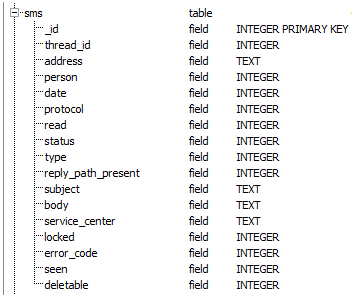
By viewing the Schema of the mmssms.db SQLite database table that holds the SMS messages and viewing the message within the database, I can gather more information about this message:

Schema 


Message


 By looking at the database, I can see that the date is stored in Epoch, and there are some flags that look like they might correspond to whether the message was sent or received – the fields named “read” and “type”.

By using all of this information, I can begin to figure out the structure.  The order of the fields in the raw data follows the order of the SMS schema. For clarity's sake, I have only included the most common fields in the picture below:


Address:
The Phone number associated with the message.

Date Field
To determine how the date is stored, I viewed this value in the database and noted it was stored in Epoch.  I tried converting the Hex value 01 3C 5D BC 32 76 to decimal which is 1358782280310. This value matches the value in the database. Converting to UTC yields Mon, 21 January 2013 15:31:20 UTC, which matches the value displayed by Cellebrite.

Read/Type
By using my all in one tool, I looked through the existing SMS Messages and cross referenced these values to what I was seeing in the database to establish what the flag values of "read" and "type" mean.
    Read:
        00 = Message was unread
        01 = Message was read
    Type (Aka"folder"): 
        01 = Inbox
        02 = Sent

Now I can apply the same structure to the message found in unallocated space and parse it manually:


 Date: Hex value 01 39 22 20 57 66 to decimal which is 1344897308518. Converting to UTC yields Mon, 13 August 2012 22:35:08 UTC

Type:  02 which means the message Sent.

So now I have some valuable information about this deleted text message. This message was sent by the user of the phone indicating they ate the Trix, and the message was sent on August 13, 2012 at 3:35PM AZ time.

I should also mention that within Cellbrite, you can view an existing message in the mmssms.db file in Hex view.  Cellebrite color blocks data it has parsed, and when you hover over a block, it will show you what values it parsed. I wanted to show the more "manual" way first in case some other tools do not do this, or if for some reason the database was not parsed, which I have ran into. Please note, it does not do this for messages in unallocated space.

 
Depending on the phone, the SMS structure may be totally different. Also, because the information is stored in a SQLite database and deleted fragments may be located outside of an SQLite database, there does not seem to be a "header" or "magic number" to carve for.

Here are three SMS schemas from three different Android Phones. Some different fields of interest have been circled. The same method used above could be used to determine how these values are stored "in the raw" to parse deleted messages found in unallocated space.


Samsung CDMA SPH-D720 Nexus S


Samsung GSM SGH-T839 Sidekick 4G

Samsung GSM SGH-T959V Galaxy S

 
As you can see from the three phones above, each phone has a different way of storing the SMS messages which can make it difficult to write a script to "recover all deleted text messages from all Android phones" -I have left that up to the monkeys - well at least one cheeky one.

Addendum [added 02/18/2013]
Please make sure and read the comment posted by Brian below. He makes a great point.  For any of the above to work, the data generated by the forensic tool/software needs to be validated against the actual device. I had done that in this case, but failed to mention it.

[added 02/25/2013]
Adrian's script is now available, make sure and check it out.

Saturday, December 29, 2012

Dude, Where's My Data?


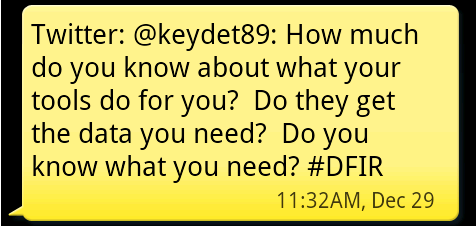
Harlan's tweet (view picture to the right) got me thinking, and I would like to share a case example that I feel drove this particular point home for me.

 Many of the 'Swiss Army' forensics tools will parse data for you and automate various tasks. For example, X-Ways will parse link files and EnCase will  parse (or mount, whatever term you prefer) PST files. Instead of exporting out these files and working with them in separate programs, these Swiss Army knives will display the data in a more readable format within their GUI.

Cell phone forensic programs work in a similar fashion. They will first acquire the phone (if you’re lucky that day) then parse typical data such as SMS and MMS messages, call logs and contact information. These programs can also generate a pretty report for you to turn over to your clients (whether it’s a prosecutor,  a defense attorney or your cousin Vinnie). As an examiner, this can be great thing.  No need to locate and export the database, run queries and convert timestamps.

Each of these programs has taken a task that is repetitive and automated it - in most cases, saving the examiner time. But where is the Swiss Army knife getting its data from, how is it interpreting it and  is it getting all the data?
 
Now, to get to my case example.  I had an iPhone where I was tasked with getting the voicemails.  In order to do this I had three “Swiss Army knife” tools at my disposal:
  • Swiss Army Knife A – $$$$$
  • Swiss Army Knife B – $$$
  • Swiss Army Knife C – $
All three programs were able to acquire a file system image of the cell phone as well as parsing the SMS, MMS and call logs, but what I needed were the voicemails.  Only one of these tools (A) automatically parsed the voicemail.db file which contained information regarding the voicemails. I did locate the voicemail.db file within the file system of the two other programs (B and C) - the programs just didn’t parse this database automatically.

Now, if an examiner had just the option of B or C that did not automatically parse the voicemails and point them out – would they have assumed there were no voicemails? Ok, this may not be the best example as voicemails are a pretty common thing, but what if it were a not so common artifact?

I decided to use A to conduct the remainder of the exam since it had already parsed the voicemails saving me the time of exporting out the database, running quires and converting timestamps. I could now get a pretty report.   I went to generate the report and the program threw an error. No report, no exported voicemails.  Dude, where's my data?
 
In my quest to find out why the $$$$$ Swiss Army knife threw an error, I went to view the contents of the voicemail.db file to see if there was some abnormal data causing issues. I opened the voicemail.db file with an SQLite viewer and noted several columns of data NOT displayed by the $$$$$ program.

Included were two columns I thought right off the bat could be important – a "flag" column and a "trashed" column. The flag column designates certain statuses of the voicemail such as heard, unheard or deleted. The trashed column is the date that the voicemails where placed in the deleted folder. What if the examiner needs to prove the suspect had listened to a voicemail?  I know I don't always listen to my voicemails (sorry Kim) and opt to just call the person back instead. (Now I know you can't prove they listened to it, per say. Maybe their speaker was busted,  or their nephew had their phone but this is just an example for illustrative purposes so just roll with me).

After some more testing, I determined it was blank values in the database that were causing errors with the reporting. Was I going to wait for the next software update to get a report? No. Time to work with the data myself. I had three options:

Good → Export the data from the database into an Excel sheet, use formulas to convert the timestamps

Better → Write a script to parse the data as I would probably need it again

Best → Have someone else write a script to parse the data

Now, arguably, Better and Best could be switched.  It’s always good to write your own tools so you gain a deeper understanding of the data. However, in my case I had someone (Cheeky4n6Monkey) reach out to me when I was working on iParser asking if I needed any help.  I know he enjoys learning and is always looking for a forensic project to help on. So rather then write my own parser  I thought this would be a nice project to involve him in.

A few emails later I had a custom tool written by him that gave me the exact data I wanted and hopefully he got to learn something in the process too.

So in summary, I am going to quote Harlan’s tweet again:

 How much do you know about what your tools do for you?  May I make the following suggestions?  Look at the data with different tools to see what your tool may not be doing. Look at the raw data, or look at the data in its native format to see how your tool interprets the data and what it may be missing. Read the forums associated with your tool, see what it may be capable of that you are missing out on based upon how others use it.

Do they get the data you need? In my case, not always. Sometimes I need to roll up my sleeves and do the dirty work by myself (err, in this case I asked someone else to join in with me).

Do you know what you need? How do you know what data you need, if you don’t even know it exists? Keep researching, reading blogs, watching webcasts and asking questions.  Don’t assume that everything will be handed to you on a silver platter by your tools.

Umm, in case you don't get my movie reference, Google "Dude, Where's My Car"  :-)


Saturday, December 22, 2012

iParser Update: Batch Processing Added

I figured before the end of the year I should cross off at least one thing on my list I have been meaning to do. When I first released iParser, I had some feedback asking for a way to batch process plist files (thanks to a tester who has asked to remain anonymous). Due to some other projects, work and life in general this went on the back burner for a few months.
  
What got me moving on making the improvements was a recent exam on an iPhone.  I wanted a way to parse all the data in the plist files. Once I wrote the batch processing option in iParser, I simply exported out the plist files from the phone into a folder, ran iParser and had a report to review.

The above is just one example of how the batch processing can be utilized. As long as you have a plist file, you can use iParser.  Keep in mind the power of the plug-ins though.  If you keep on parsing the same files from an image, take a moment to add the plist as a plug-in (see my instruction here).

I hope this will add more flexibility to the program.  Thanks to everyone that provided feedback.  It may take a little bit for me to get around to it, but I do listen and hope to keep making improvements.

Download iParser v.1.0.0.20 with batch processing.


Friday, November 23, 2012

Google Analytics Cookie Parser

I recently watched an excellent webcast on the SANS website archive about ‘Not So Private Browsing”. In this webcast, Google Analytics cookies are covered, and the wealth of information that can be found in them. I also located a great article on the DFI News website that covers these cookies as well.
 
I won’t go into detail here, as both of the above mentioned resources do a great job. But, briefly, the Google Analytics cookies can contain information such as keywords, number of visits, and the first and second most recent visit. According to the SANS webcast, approximately 80% of websites use Google Analytics, so there is a good chance you may find some of these in your exams.

There are three types of cookies that contain information of value: __utma, __utmb and __utmz. The four main (debatable, I know) browsers store them differently. Internet Explorer stores them in a text file, Firefox and Chrome in an SQLite database, and Safari in a plist file.

The values in the data base look something like this:
  • __utma: 191645736.1125870631.1349411172.1349411172.1349411172.1
  • __utmb: 140029553.1.10.1349409002 
  • __utmz: 140029553.1349409002.1.1.utmcsr=google|utmccn=(organic)|utmcmd=organic|utmctr=php%20email%20throttling 
For example, the values highlighted in red are timestamps in Unix epoch, and the "1" in blue is the number of hits.  As I mentioned before, both SANS and the DFI News article break down how to parse these out in detail.

I have written one tool that will parse the Google Analytics cookies for these four browsers, GA Cookie Cruncher:

Internet Explorer - point the tool to the folder containing the cookies (either export out the cookies folder, or mount the image). The tool will read each cookie within the folder, determine if it has these values and parse them accordingly.

Chrome – point the tool to the cookies sqlite database (either exported from your image, or mounted). The tool will query the database for all the Google Analytics values and parse accordingly.

Safari (Mac) – point the tool the the cookies.plist file. It will parse the plist file and the the Google Analytics cookies within.

Firefox- The Firefox cookies are stored in an SQLite database. Unfortunately, the wrapper library I used can not access this SQLite Database. I also tried to test the Firefox cookies database with the free SQLite Browser which could not read it either. So far, the only tool I have been able to access this database with is the SQLite Manager plugin for Firefox.

The work around I implemented is load the Firefox cookies database into the SQLite Manager plugin. From there, export out the mz_cookies table into a CSV file. This csv file can then be parsed by the program. I know, extra work, sigh - but it’s still better then manually parsing through that data.


I have  included a little hint in the "Browser Information" box to remind you where the default location of these cookies are for whatever browser you select. I cant event remember where I put my keys, so I thought this might be helpful.

The program creates 3 files in CSV format: %Browesername%_UTMA, %Browesername%_UTMB and %Browesername%_UTMZ

 Here is some sample output from Internet Explorer from a __utmz cookie:


 Now, I haven’t tested this on every browser version out there, and I have seen some variations on the way the cookies are stored. Some initial tests indicate that IE 9 does not seem to track these values, but more research will need to be done to confirm (thanks to cheeky4n6monkey for the testing).  If the tool does not read your cookie file, I'm happy to help, just shoot me an email.

Download the GA Cookie Cruncher here.

Enjoy!